
Setting Up Convenience Fees
1.9 min read
|This article is about the Billing Manager app, not the Billing Wizard in 3PL Warehouse Manager. To learn about the Billing Wizard, please refer to the articles in the Billing Setup.
A convenience fee is a charge you can pass on to your customer for offering the convenience of electronic payments. This article walks you through setting convenience fees for your whole organization, then customizing or turning them off for individual customers.
Convenience fees work at two levels:
- Organization level: The default fees that apply to every customer. You set these in Settings > General Settings.
- Customer level: Optional overrides for a specific customer. Customer-level settings always take priority over organization-level settings for that customer.
If a customer has no override, Billing Manager uses your organization-level fees.
Configuring organization-level convenience fees
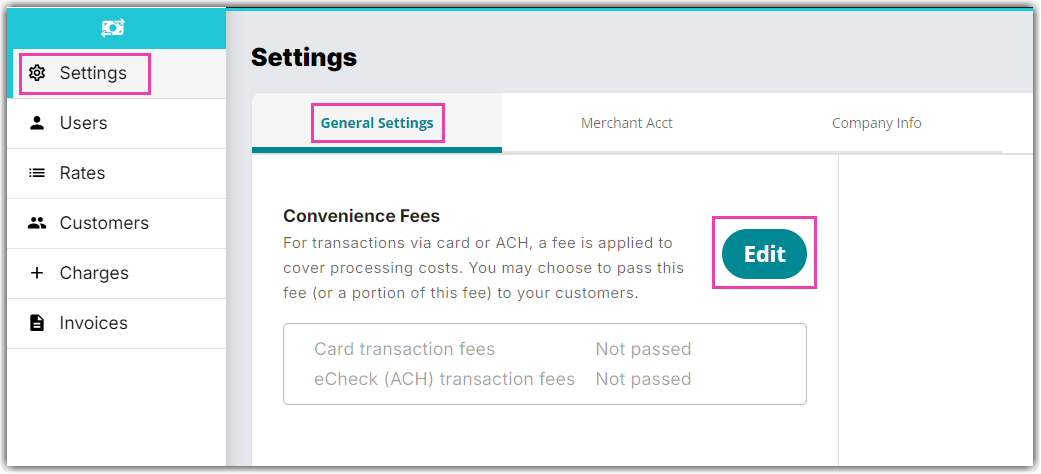
- Go to Settings > General Settings.
- In the Convenience Fees section, click Edit.
- Choose the payment types for which you want to charge convenience fees. You may select both.
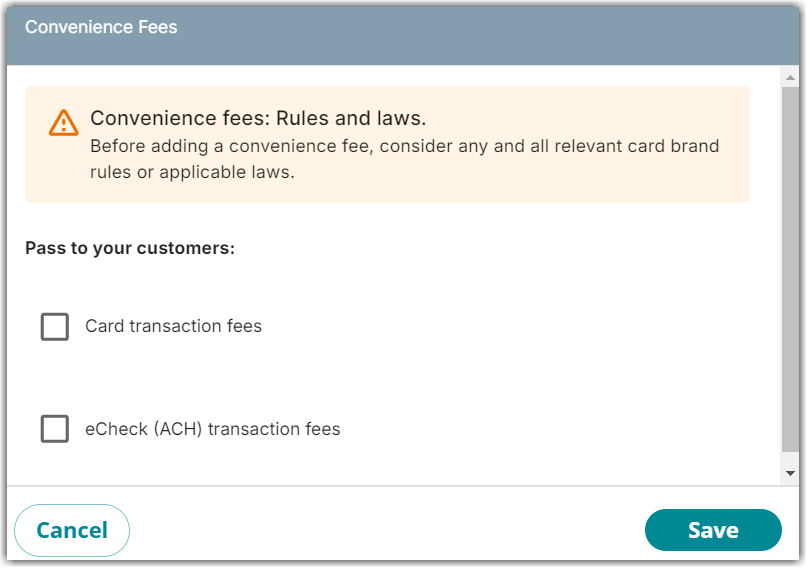
- Set the fee amount for each selected payment type.
- Click Save to apply your changes.
Customizing convenience fees for a customer
You can turn convenience fees on or off for a specific customer, or give that customer a different fee amount than your organization default.
Note: Customer-level convenience fee settings are available only when organization-level convenience fees are turned on. [confirm with TW: section is hidden vs. shown but disabled]
- Go to Customers, then search for and select the customer.
- Click Edit.
- Open Payment Settings.
- In the Convenience Fees section, select or clear Card and eCheck (ACH) to turn each fee on or off for this customer.
- For each fee you keep on, enter a custom fee amount. This amount replaces your organization-level amount for this customer only.
- Click Save.
Turning a customer's convenience fee back on
If you turned off a convenience fee for a customer and then turn it back on, the fee amount fields appear empty. Billing Manager doesn't restore the customer's previous amount or fill in your organization amount automatically.
Before you can save, do one of the following:
- Click Reset to default to fill in your current organization-level fee amounts. This includes any changes made to your organization fees while the customer's fee was off.
- Enter a custom fee amount manually.
You can't save while the fee amount fields are empty.
Fee limits and compliance
- Credit Card payments: Maximum of 4%
- eCheck (ACH) payments: Maximum of 2% or $100, whichever is lower
How Convenience fees affect processing fees
- Convenience fee limits (such as the ACH maximum) apply only to the convenience fee itself.
- These limits do not apply to Stripe or other payment processor fees.
- Because processing fees are calculated on the combined total, adding a convenience fee may result in a higher overall processing fee.
Example
- The customer pays $1,020.
- Stripe processing fees are calculated on $1,020, not just the original invoice amount.
To learn more on how Stripe processing fees is calculated, see our article on Understanding How Stripe Processing Fees Work.
Was this article helpful?
Share additional feedback about this article