
Configuring SNAP
0.7 min read
|
Configuring SNAP
- Start by generating your SOAP API Credentials. In the Warehouse Manager web portal, navigate to the settings > API


- Once in the API screen, click on Generate API Keys under SOAP (Legacy) API Credentials.
You must generate the SOAP (Legacy) Api Credentials API keys, not the API Credentials

- When the Keys are generated you will see the API Key and API Secret listed below the Generate API Keys button.
- Copy the Key & Secret and save it somewhere that you can access it again.
The API Secret as it will disappear once you leave this screen so it is important to save it.
- Once installed, the SNAP application can be found in your start menu under 'Scout'. Navigate there and run the SNAP application.
- Under the 'Setup' tab within SNAP, you will see 3 fields that are required.
- Username - copy and paste in the API Key
- Password - copy and paste in the API Secret
- Website - will always be ws.scoutsft.com unless instructed otherwise
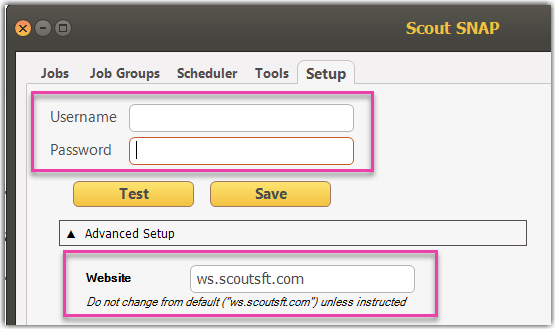
- After you've entered your information, Click Test to test the connection.
- Click Save to save the information into the SNAP tool.
After the first log-in, additional tabs will be able to be accessed (Jobs, Job Groups, Scheduler, Tools, Setup)
Was this article helpful?
Share additional feedback about this article