
Configuring Extensiv Warehouse Manager
0.5 min read
|Configuring Extensiv Warehouse Manager
After you have downloaded and installed the Warehouse Manager software for your device, you can configure it by,
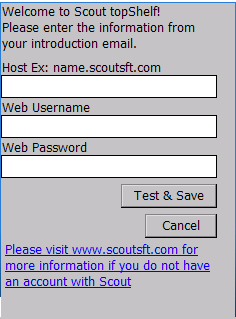
- Double clicking on the Warehouse Manager icon now on your desktop. Since this is the first time running the software on this device, you will need to provide your Warehouse Manager with the following credentials to link the device to your Warehouse Manager instance:
- Host: ws.scoutsft.com - On newer versions this field may not show up
- Web Username: Warehouse Manager main admin username sent with your 'Welcome to Warehouse Manager' initial email
- Web Password: Main admin password
- Once you have entered your information, click Test & Save. If the information was properly entered, you should receive a 'success' message.
- Next, open the Warehouse Manager icon from the desktop again and you should be prompted with the Warehouse Manager login page.
Was this article helpful?
Share additional feedback about this article