
Setting Up Payment Wallet (3PL Customers)
This article guides customers of our Third-Party Logistics (3PL) providers who wish to set up their card or bank details to pay invoices
0.5 min read
|This article is about the Billing Manager app, not the Billing Wizard in 3PL Warehouse Manager. To learn about the Billing Wizard, please refer to the articles in the Billing Setup.
This article guides customers of our Third-Party Logistics (3PL) providers who wish to set up their card or bank details to pay invoices.
To gain access to Billing Manager, pls contact your 3PL provider.
Step-by-step guide
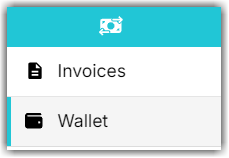
- Click Wallet in the left navigation menu.
- Click Add Payment Method.

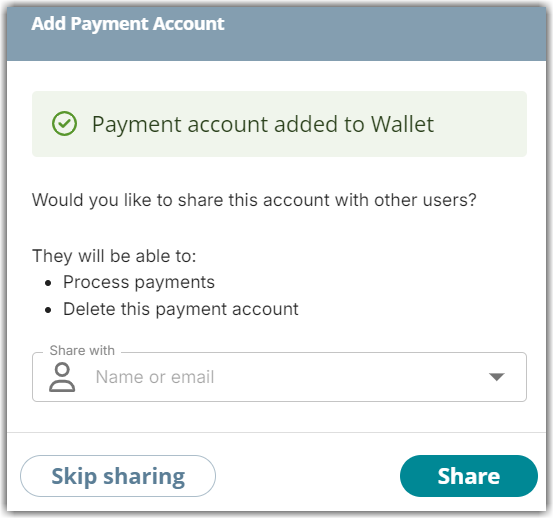
- Enter the card/bank details in the ‘Add Payment Account’ window.

- To share this payment account with other users for payment processing, select the user account from the dropdown menu and click Share. Click Skip Sharing if not needed.
For steps on how to process invoice payments, refer to our article ‘Processing Payment (3PL Customer).’