
Enabling and Configuring Replenishments
1.9 min read
|Overview
This article walks you through how to enable and configure the Replenishments feature in 3PL Warehouse Manager. Replenishments significantly changes allocation behavior, so review warehouse, item, and location settings carefully before enabling it.
Enabling Replenishments
Warehouse settings
- Click Warehouse > Manage Warehouse in the left navigation.
- Select a warehouse and click Edit.
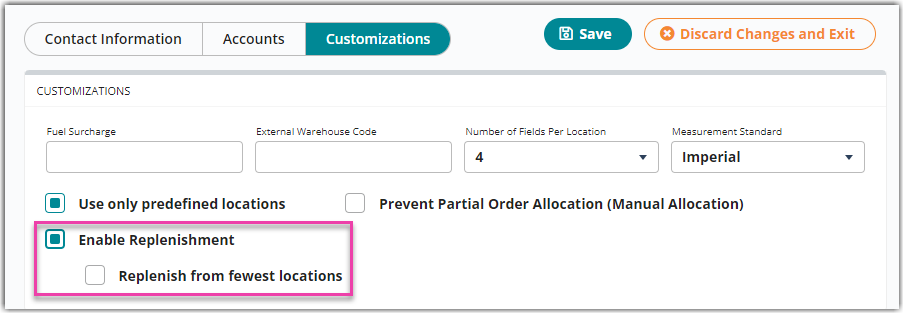
- Set the Replenishment-related settings in the Customizations tab as needed then click Save.
- Enable Replenishment enables replenishment logic for this warehouse. Inventory is made available for replenishments based on Location and Item settings.
-
Replenish from fewest locations tells the system to use locations with higher quantities when creating a move request. This overrides item allocation settings (FIFO, LIFO, FEFO) when selecting inventory for a replenishment move request.
Item‑level settings
Enable Replenishment for each item you want to replenish in the warehouse.
- Navigate to Items > Manage Items.
- Select the item you want to enable Replenishment for and click Edit.
- Click the Units of Measure tab and scroll down to the Inventory Management > REPLENISHMENT.
- Select the Pick line checkbox, the Bulk storage checkbox, or both to enable replenishment for that location type.

Replenishment settings are organized into two sections: Pick Line and Bulk Storage. You can enable one or both sections independently — you don't need to configure both if your workflow only uses pick line locations or only uses bulk storage.
Pick line replenishment settings
Allocate from Pick Line: Determines when an order should allocate inventory from the pick line instead of bulk storage, based on an order quantity threshold. The default value for this setting is 10. Make sure to update this value as needed before enabling replenishment. We recommend setting this value to a multiple of the item’s Primary units per package when defined
Pick Line Minimum: When inventory falls below this value, replenishment is triggered
Pick Line Maximum:Target quantity after replenishment
Bulk storage replenishment settings
Bulk Storage Minimum: Triggers replenishment when pickable storage quantity falls below this value
Bulk Storage Maximum: Target quantity after replenishment
Pick Line vs. Bulk Storage replenishment logic
The WMS uses different logic for pick line replenishment and bulk storage replenishment.
Pick Line Location: Replenish in multiples of the item’s Packaging UOM (Primary Units per Package) to get as close to the Pick Line Maximum as possible without exceeding it.
Bulk Storage Location: Replenish in movable unit quantities. However, each move request is for a single movable unit, even if that unit is not full. This ensures that the replenishment process follows the item’s allocation method (FIFO, FEFO, LIFO), but it may mean that a single move request does not completely refill the location.
Location settings
Location Type |
Pickable |
Replenishable |
Pickline |
Yes |
Yes |
Storage |
Yes/No |
Yes/No |
Staging |
Yes/No |
No |
Quarantine |
No |
No |
Putaway Vehicle |
No |
No |
These settings automatically change based on the selection that is made.
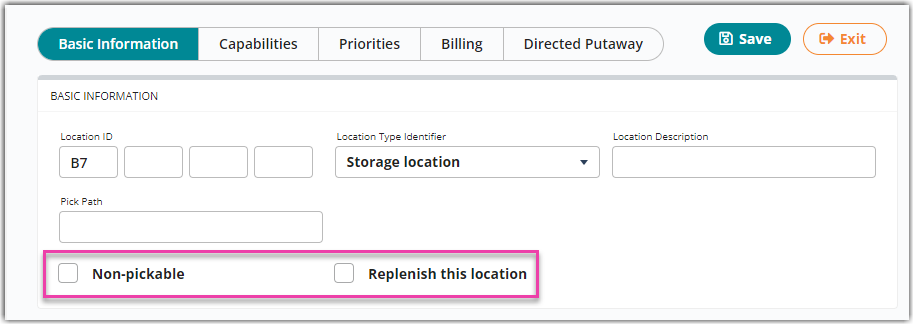
Click Warehouse > Manage Location > Location > Edit > Basic Information.
• Non-Pickable prevents orders from being allocated and picked from this location.
• Replenish this location enables replenishment logic for this location.
Replenishment uses the Pick line minimum and Pick line maximum (or bulk storage minimum/maximum) defined on the item definition to determine when and how much to replenish. Multiple SKUs can exist in the same replenishable location, each with their own replenishment thresholds.
Learn more
Was this article helpful?
Share additional feedback about this article