
Creating a Tiered Rate for Adjustments Counting Total Quantity
0.7 min read
|This article provides a step-by-step guide on how to create a special charge for an adjustment counting the total quantity using a tiered rate. You can also watch the instructional video for guidance.
- Navigate to Rates > Rate List.

- Click + Create Rate in the upper right corner.

- Select the following options as shown below on the Create New Rate window. Then, click Continue.
Automated rate > Simple Rate > Tiered Rate

- Provide some basic details such as Rate Name, Rate Description, and Charge Label.
- Select Adjustment for the Transaction Type and Special Charges for the Charge Category. Then, click Continue.

- Select the following for each field in the Charge Method section. Then, click Next.
Charge Type: Flat
Counting Unit: Qty
Calculate By: Count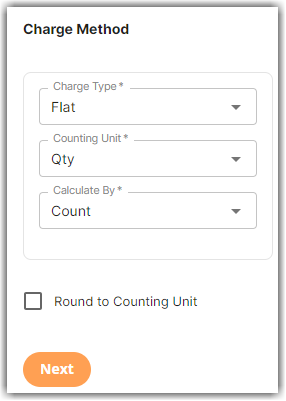
- Select Standard Tiering in the Tiers section. Then, click Next.
To learn more about the difference between Standard and Volume Tiering, read our article on Understanding Standard vs Volume Tiering.
- Specify the number of units and amount for each tier. Then, click Next.
In the example below, we will charge $5 per unit for five or fewer units, $3.5 per unit for more than five units.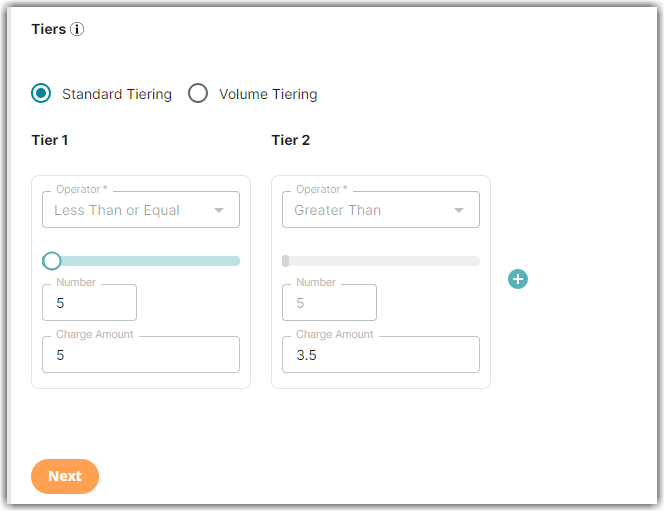
- Click Skip on the Rate-Level Rule section.
- Click Yes, Save to save this rate.
- Select Yes or No as desired to add to a rate sheet.