
Creating a Fragile Package Handling Rate
1.1 min read
|This article is about the Billing Manager app, not the Billing Wizard in 3PL Warehouse Manager. To learn about the Billing Wizard, please refer to the articles in the Billing Setup.
This article provides a step-by-step guide for creating a rate that enables you to apply a fragile handling fee based on item classification. You can also watch this instructional video for guidance.
Scenario: Charge an additional fee for careful packaging on primary units, rounding up to the nearest packaging unit quantity
- Navigate to Rates > Rate List.

- Click + Create Rate on the upper right corner.

- Select the following options as shown below on the Create New Rate window. Then, click Continue.
Automated > Smart Rate > Flat Rate

- Provide basic details such as Rate Name, Rate Description, and Charge Label.
- Select Shipping for the Transaction Type and Handling for the Charge Category. Then, click Continue.
- Select the following for each field in the Charge Condition section. Then, click Next.
Conditional Field: Item Classification
Operator: Equals
Conditional Value: Fragile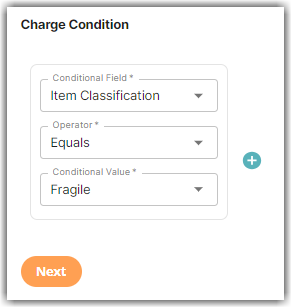
- Select the following for each field in the Charge Method section. Then, click Next.
Charge Type: Flat
Counting Unit: Packaging Units
Calculate By: Count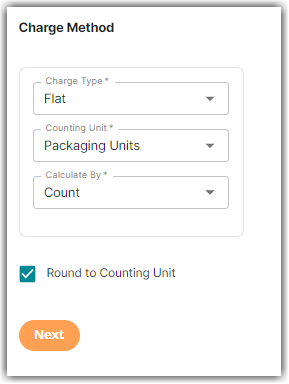
- Select the Round to Counting Unit.
What does above charge method means?
This enables the system to count units based on the primary unit, while also determining the quantity that constitutes a package. By selecting the Round to Counting Unit option, the system will generate a complete charge based on the package quantity. This ensures that the system always rounds up to the nearest whole package quantity and doesn't create partial charges
- Enter the desired charge in the Charge Amount section. Then, click Next.
- Click No on the ‘Would you like to add another condition to this rate?’ window
- Click Skip on the Rate-Level Rule section. There is no need to group total charges.
- Click Yes, Save to save this rate.
- Select Yes or No as desired to add to a rate sheet.