
Creating a Rate for Total Kits Created in an Assembly Using Volume Tiering
0.9 min read
|This article is about the Billing Manager app, not the Billing Wizard in 3PL Warehouse Manager. To learn about the Billing Wizard, please refer to the articles in the Billing Setup.
This article provides a step-by-step guide on how to create a special charge for an adjustment per SKU using a Standard Tiered rate. For further guidance, you can watch the instructional video here.
Start by learning about Volume tiering
For a deeper understanding of the tiered rates, please refer to our article on Understanding Standard vs Volume Tiering.
- Navigate to Rates > Rate List.

- Click + Create Rate in the upper right corner.

- Select the following options as shown below on the Create New Rate window. Then, click Continue.
Automated rate > Simple Rate > Tiered Rate
- Provide basic details such as Rate Name, Rate Description, and Charge Label.
- Select Assemblies for the Transaction Type and Handling for the Charge Category. Then, click Continue.

- Select the following for each field in the Charge Method section. Then, click Next.
Charge Type: Flat
Counting Unit: Total Kits
Calculate By: Count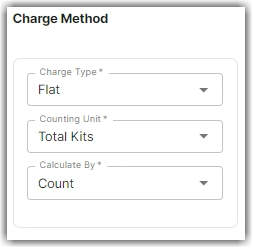
- Select Volume Tiering in the Tiers section. Click Next.
- Specify the number of units and amount for each tier.
In the example below, we will charge $1 per kit for 10 or fewer kits, $0.75 per unit for 11 to 20 kits , and $0.5 per kit for more than 20 kits.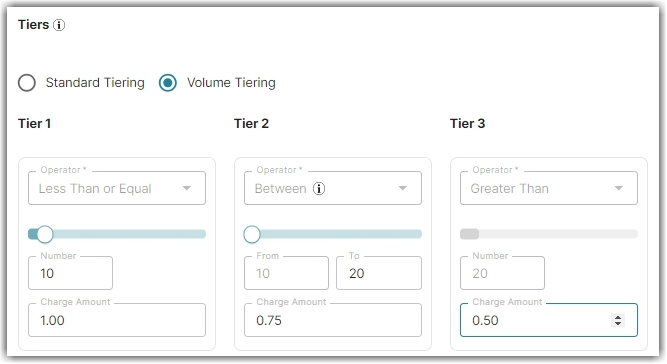
- Click Skip on the Rate-Level Rule section.
- Click Yes, Save to save this rate.
- Select Yes or No as desired to add to a rate sheet.