
Setting up Vin eRetail WMS
0.6 min read
|This article covers Vin eRetail as an Order Destination. To view the Order Source documentation, go here.
Supported functions:
- Order Send
- Inventory Sync Pickup
- Shipment Confirmation Pickup - Detailed
Workflow

- Sales Order Download from Order Sources to Integration Management
- Sales Order Delivery from Integration Management to Vin eRetail
- Shipment Tracking from Vin eRetail to Integration Management
- Shipment Tracking from Integration Management to Order Source
Required parameters
- Extensiv Integration Manager API User
- Integration Manager API Key
Step-by-step guide
- Launch Integration Management from Extensiv Hub.
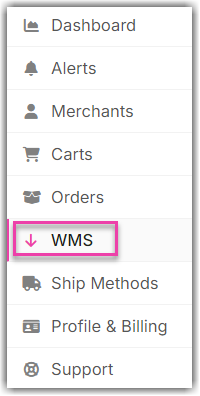
- Click on WMS and click Change WMS next to the dropdown list. Notice that the Change WMS disappears after clicking it, allowing you to select from the list.
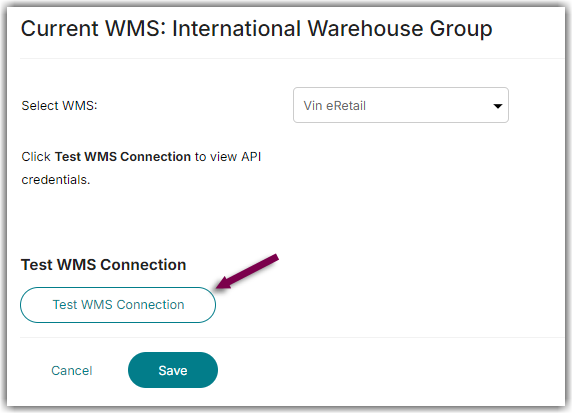
- Select Vin eRetail from the list.
- Click Test WMS Connection to show the API key details.
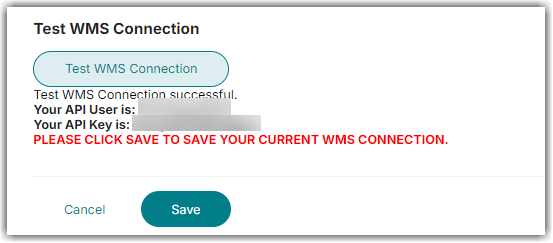
- Click Save.
- Next, login to Vin eRetail
- Go to Sales > Manage Channels
- Select CartRover from the list.
- Fill in the API credentials from Integration Manager and set any other required configurations i.e. Order Sync from Date, Order Source Warehouse etc. and click on the Save button.
Was this article helpful?
Share additional feedback about this article