
Setting Up 1ShoppingCart
0.4 min read
|Required parameters
- Merchant ID
- Merchant API Key
Step-by-step guide
- You can find your Merchant ID at the top right of your Admin Panel.
- To get your Merchant API Key go to Help > API Settings
- Your API key will be listed here. If you need a new one, click Generate New Key.
If you ever change your key, you will also need to update it in Extensiv Integration Manager. Keep your key secure and change it if someone else gets it.
- Log in to Extensiv.
- Open Integration Management.
- Go to Carts > + New Setup.
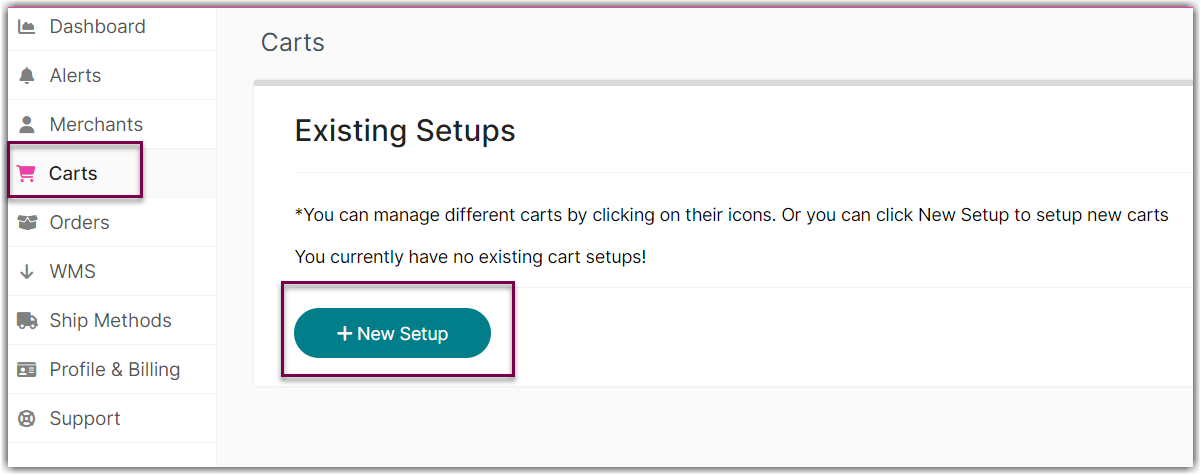
- Select 1ShoppingCart from the list.

- Fill in the API information section.

- Click Test to confirm successful connection.
- Click OK to save.

Was this article helpful?
Share additional feedback about this article